
- Solana (Meteora)
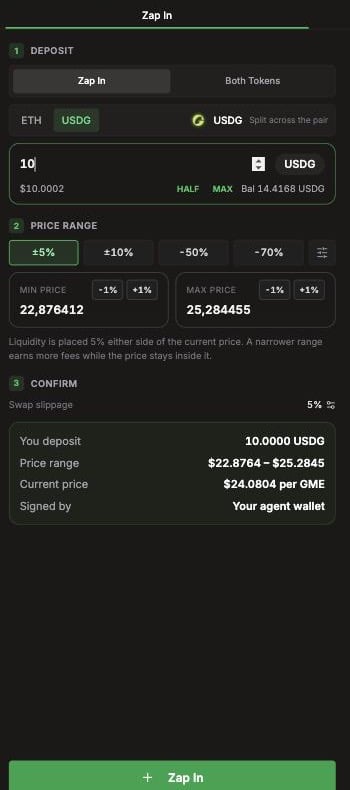
- Robinhood Chain (Uniswap)
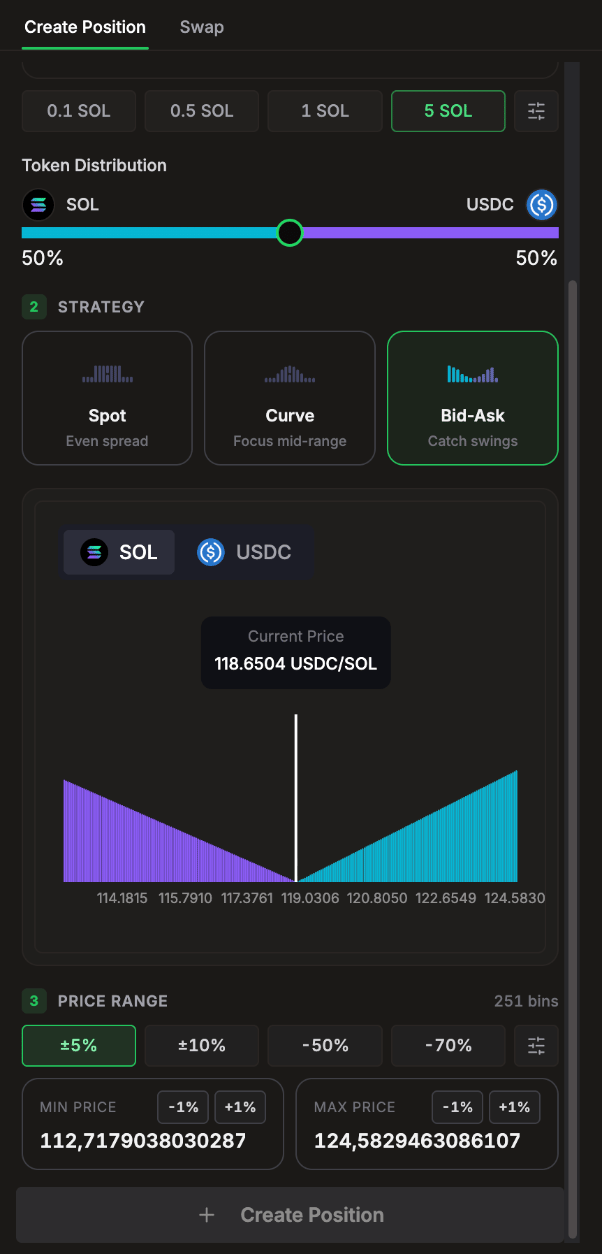
1. Deposit
- Zap In (default): pay in SOL only. LP Agent swaps what the range needs.
- Both Tokens: put in each token yourself. A Swap button next to each token helps you get the other side.
2. Strategy (DLMM)
How your liquidity is spread across the price bins in your range:The preview chart shows exactly how your liquidity will sit around the current price.
3. Price Range
Pick a preset or set it yourself:- ±5% (default), ±10%: bracket the current price.
- -50%, -70%: the whole range sits below the price. This is a one-sided, SOL-only position that buys the token as the price falls.
- Type Min Price and Max Price, step them by 1%, or drag the lines on the chart.
Costs before you confirm
The summary shows the SOL needed, the position rent (refundable when you close) and any new price bin rent. If you are the first LP in some price bins of this pool, Meteora charges a one-time rent to open each one, and it stays with the pool after you close. Narrow your range to avoid it.Press Create Position. When it lands, the position appears on your Portfolio a few seconds later while it syncs from the chain.DAMM v2 pools use a simpler form: type an amount of SOL and press Create Position. There is no strategy or range to set; the SOL is split by the pool’s ratio.
Tips
- Each new position is charged 0.1% of the amount you put in. See Fees.
- Turn on Auto TP/SL in Settings to give every new position a take profit and stop loss automatically, or set them per position. See Take Profit & Stop Loss.
- Want to start from someone else’s setup? Press Copy on a row in Positions In Pool to load that position’s range and strategy into the panel.