
Signing in
Press Connect Wallet in the header. You can sign in with:
A quick browser check runs before your wallet is asked to sign. It normally passes on its own.
One network per account
Your account is tied to one network:- Sign in with a Solana wallet for Meteora DLMM and DAMM v2 pools.
- Sign in with an EVM wallet (0x address) for Uniswap V3 and V4 pools on Robinhood Chain.
- A new email account asks you to pick Solana or Robinhood once.
Accounts created before the wallet upgrade
LP Agent moved to a new wallet infrastructure in September 2026. Most existing accounts were moved over and kept the same agent wallet address: just connect the same wallet you always used. If your account was not moved yet, the app says so and opens your previous login for you. You can also use Already have an LP Agent account? Use your existing login at the bottom of the wallet picker.Sessions
You stay signed in while you use the app, for up to 7 days. Disconnect (in the account panel) signs you out on this device.Your agent wallet
Every account has an agent wallet (shown as Embedded Wallet in the app). It is the wallet LP Agent opens, copies and closes positions from, so you don’t have to sign every transaction.- It is separate from the wallet you sign in with.
- You fund it and you can withdraw from it at any time.
- You can export its private key and import it into any wallet.
- Automation can only do LP actions and swaps with it. See Security.
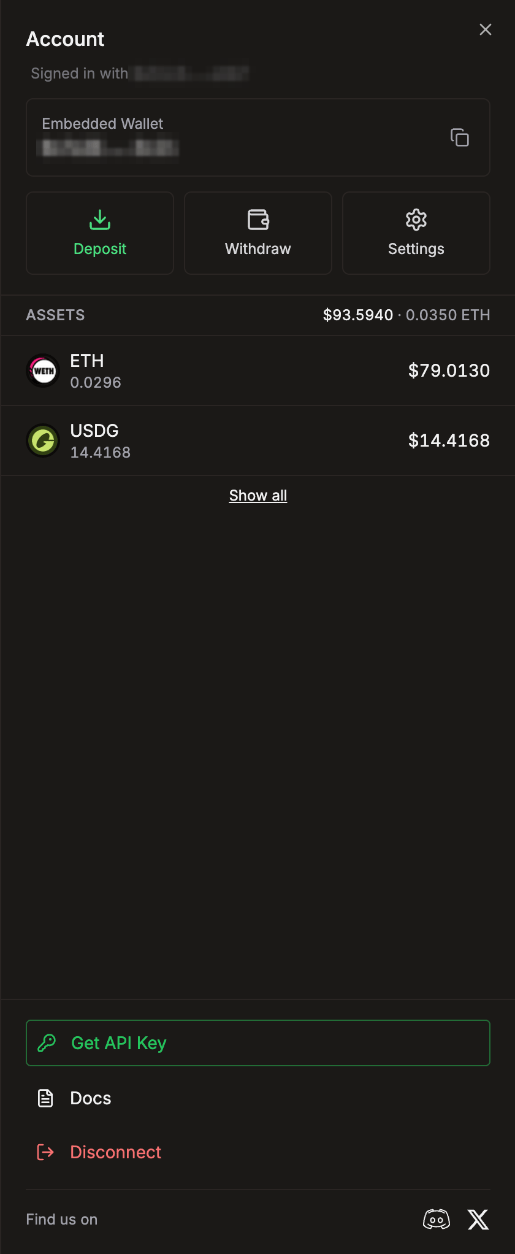
- Signed in with: the wallet (or email) you signed in with, when it differs from the agent wallet.
- Embedded Wallet: your agent wallet address, with a copy button.
- Deposit, Withdraw and Settings.
- Assets: your tokens with their value. Small balances under $1 are folded behind Show all. Tap a token to swap it.
- Get API Key, Docs, Disconnect, and links to our Discord and X.
Accounts created before the upgrade that never granted access see Grant full access instead of Deposit and Withdraw. Granting access creates the agent wallet.
Deposit
Press Deposit in the header or in the account panel.- From (your wallet name): type an amount or press Max, then press Deposit and confirm in your wallet. Max keeps a tiny amount behind for the network fee.
- Receive: a QR code and the agent wallet address. Send from any wallet or exchange. Only send on the network shown, or the funds may be lost.
Email sign-ins only have Receive. There is no card or bank purchase in the app: buy crypto elsewhere and send it in.
Withdraw
Press Withdraw in the account panel. It takes three steps:- Select Token: any token in your agent wallet.
- Destination and Amount: paste the address, or use your primary (sign-in) wallet.
- Review and confirm: check the address carefully. A withdrawal cannot be undone.
Export your private key
Go to Settings > Account > Export Private Key and press Export.- Your sign-in wallet asks you to sign once to approve the export. Email accounts may be asked for a code.
- Press Reveal private key. The key is shown inside a secure frame from our wallet provider. LP Agent never sees it.
- Store it somewhere safe. It disappears when you close the window.
Install LP Agent as an app
LP Agent works as an installable web app:- Desktop Chrome or Edge: open the browser menu and choose Install app.
- Android: open the browser menu and choose Add to Home Screen or Install app.
- iPhone: in Safari, tap Share, then Add to Home Screen. You need this for push notifications on iPhone.